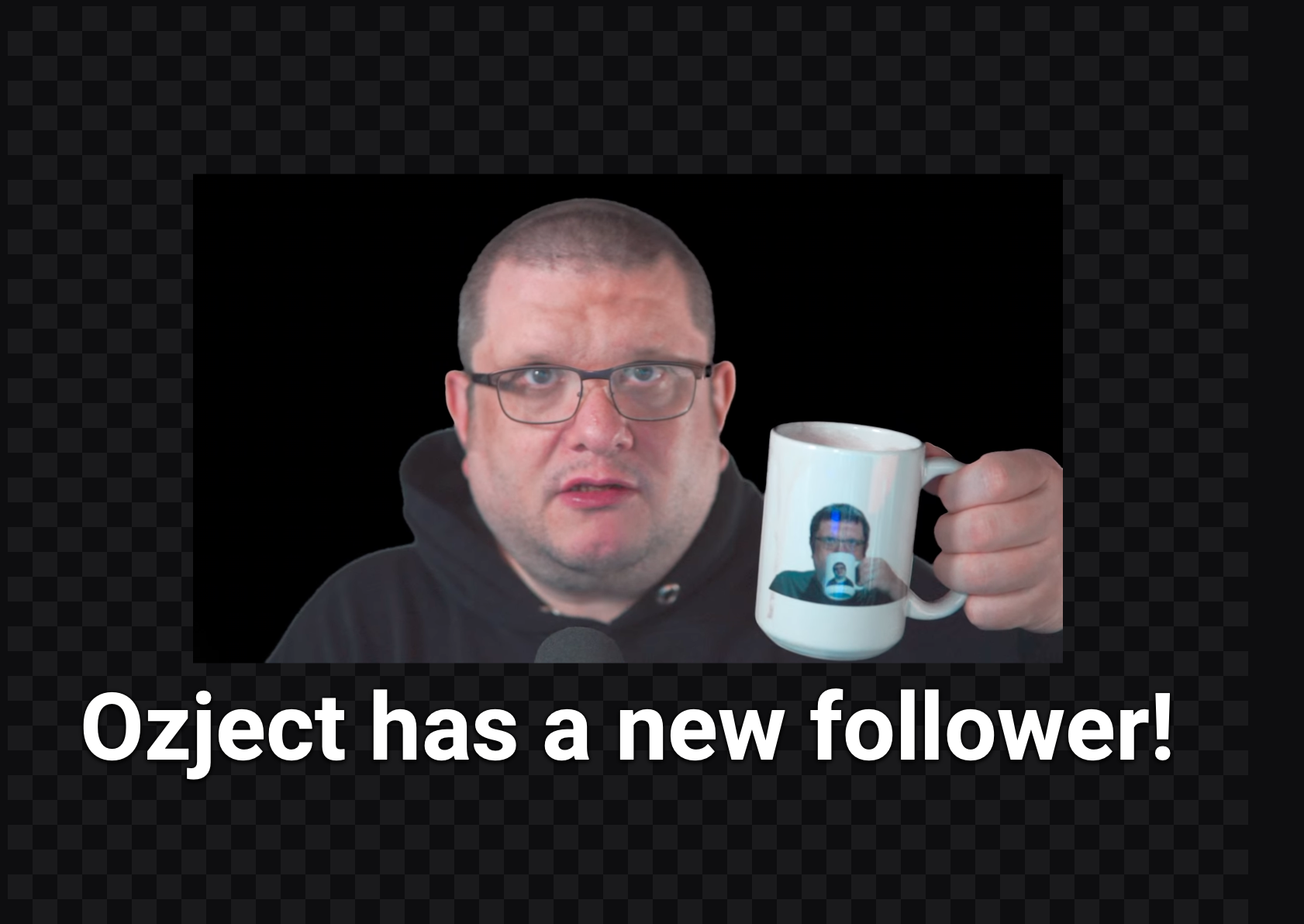
Prefer videos? This post has also been posted on YouTube as a video guide. See it embedded here or go to the Ozject Media YouTube Channel.
Alerts used to require you to link your Twitch account with StreamElements or StreamLabs, but when you just need basic alerts for Twitch that aren’t tied to a third-party service, there’s now Twitch Alerts. While a fresh alert box comes with alerts for most events, no customization needed, your stream will reach a point where you want to add a little personality.A little flair.
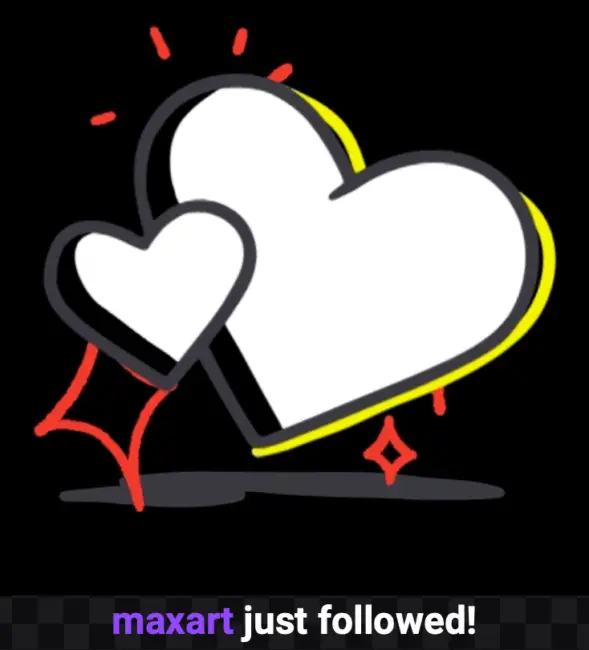
This is the default follow alert, and while it’s just fine, it’s the same for everyone who adds an alert box without any customization. How you go about this customization is up to you. For me, I record my own alerts and use those. I’ve seen people who clearly spent thousands of dollars for one-of-a-kind designs, but I’m not prepared to do that.
Follow Alerts are a great start to customizing your alerts
If you’re ready to make custom alerts, I recommend starting with the follow alert, since that will be most people’s most common alert. Only you know the vibes of your stream, but this is your opportunity to build your vibes into your alerts, or use your alerts to guide your stream to the vibes you want.
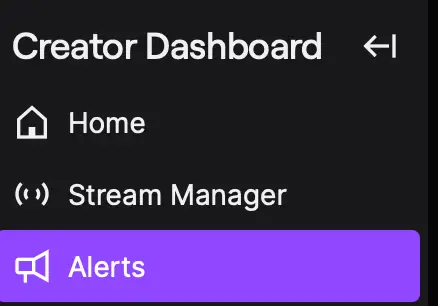
Open your creator dashboard and on the navigation menu, click Alerts. This article assumes you have already added your alert box to your streaming software of choice. If you haven’t done that, do that first.
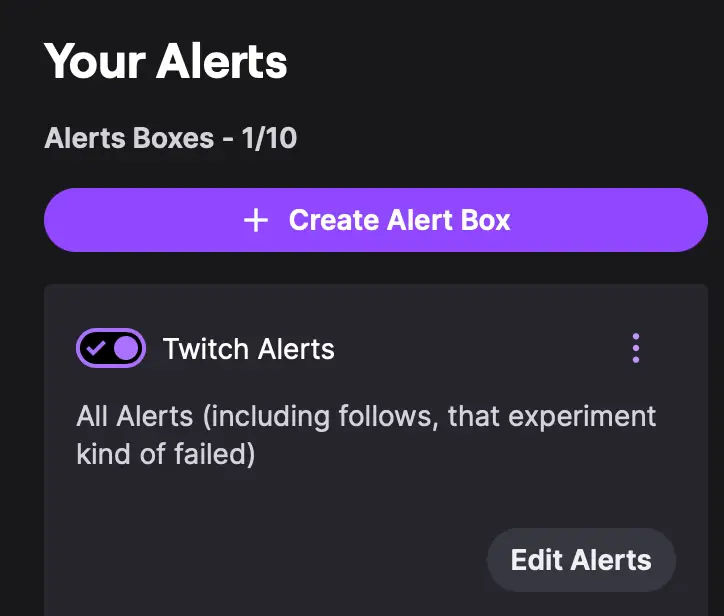
On the right side, you’ll see a column with a list of alert boxes. Most users will likely just have one item here, so click Edit Alerts to get to the alert editing panels.
You’ll be greeted by a list of events, or variants. While this list comes pre-populated with some simple alerts, you can make things as simple or complex as you’d like, with variants and randomizers to create “rare” alerts and other fun things.
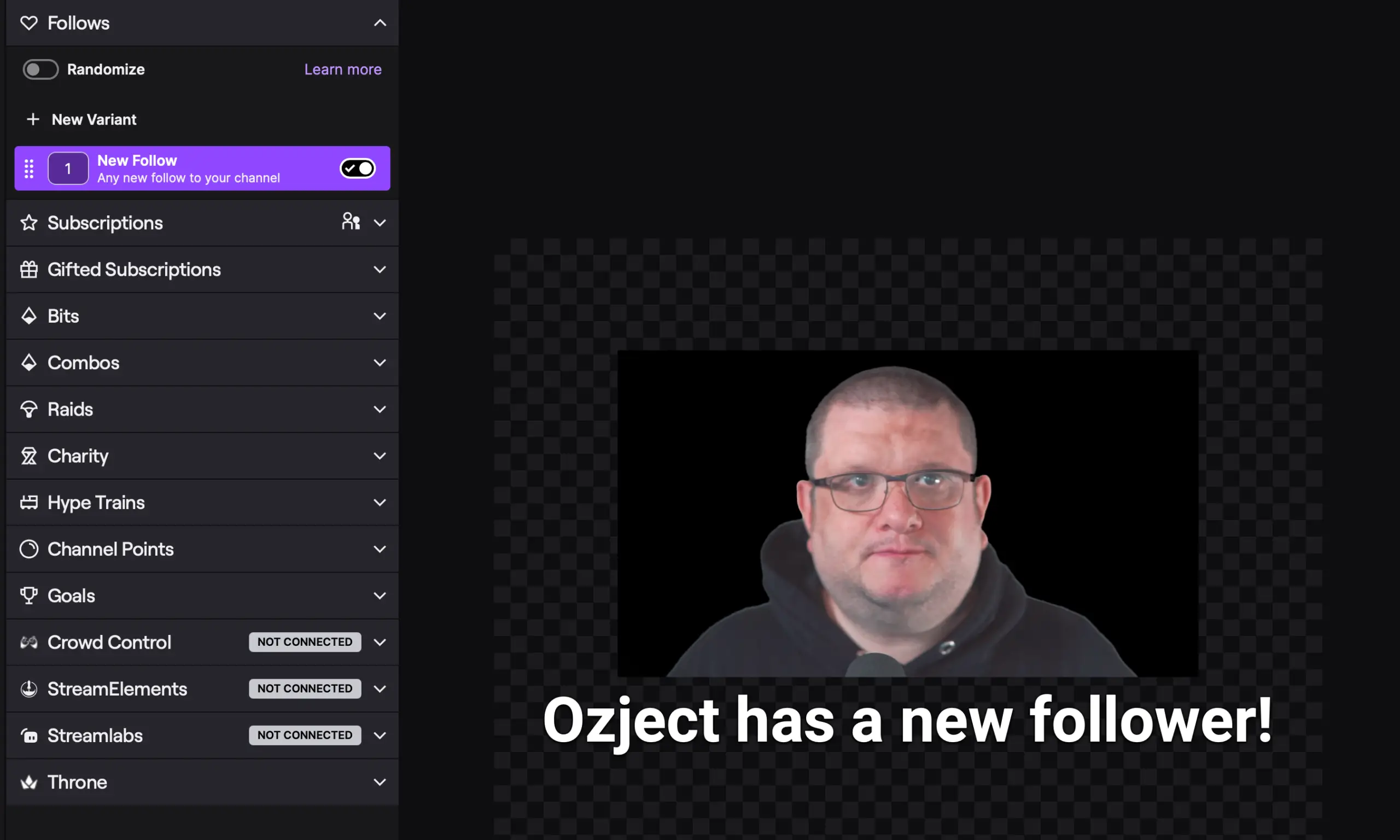
When you select your New Follow event on the left, the settings on the right side will open up. The important area here is Visuals & Sound, as that’s where we’re going to add your custom image or video.
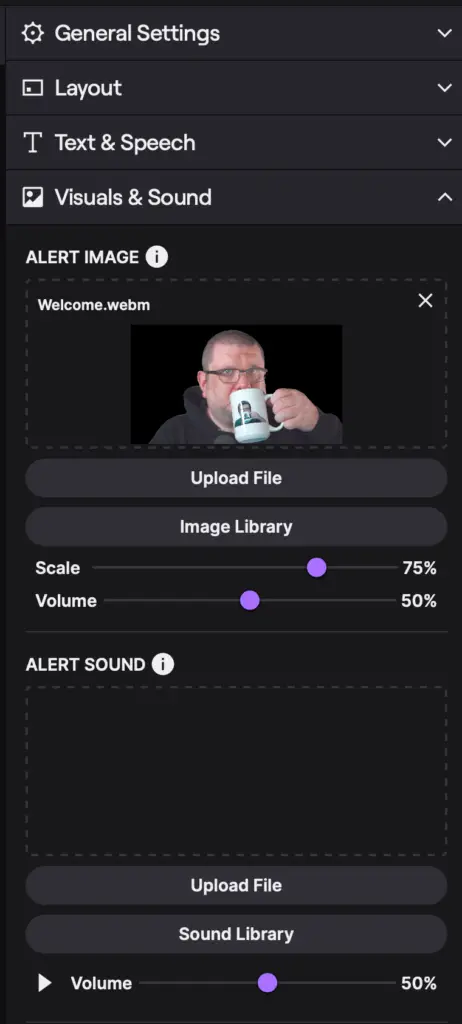
If you upload a video, such as a .webm file, that has audio, you will not needto add an audio file. For my settings here, I’ve uploaded a webm that includes me saying “Welcome,” so my alert sound window is empty.
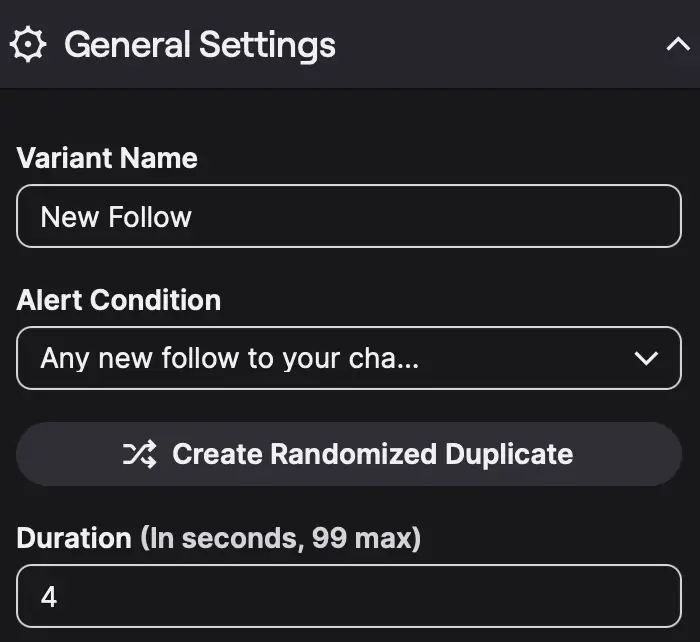
Once you’ve added your video, click on General Settings and set the duration to the duration of your video, or the duration you’d like the image visible. My follow video is 4.6 seconds, so I use 4 seconds. This ensures the video disappears before it freezes.
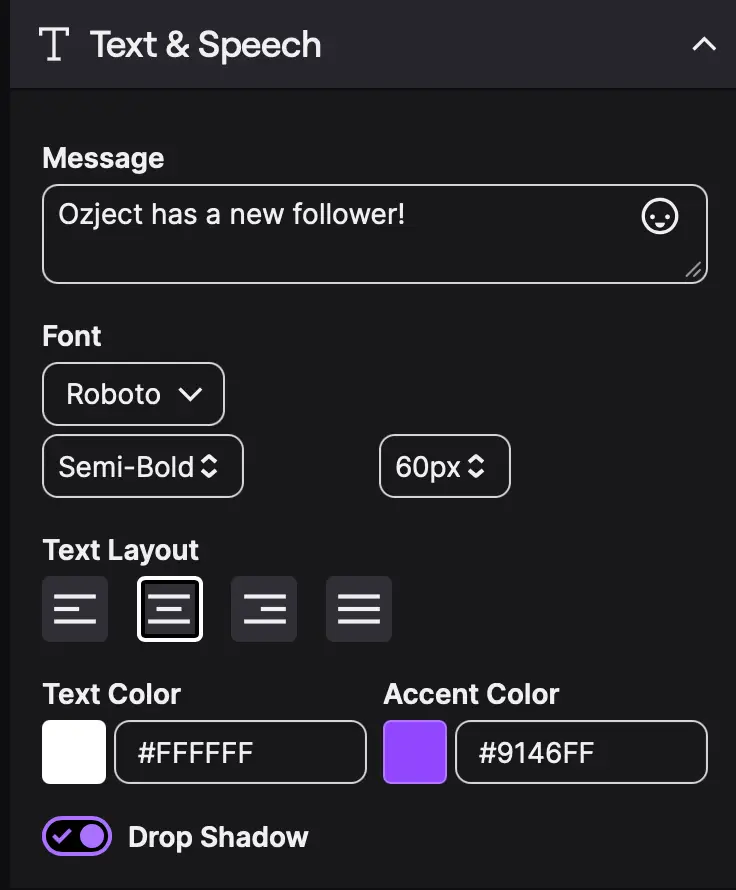
Under Text & Speech, I like to increase the font size of my alerts, since they occupy a small portion of my screen. I also apply a drop shadow to the text, which doesn’t do much, but helps separate the text from the gameplay on screen.
Don’t Forget to Save!
After that, simply click Save Changes at the top of the screen, and then you can Send Test Alert to verify that it works in your stream software.
You can repeat these instructions for all types of alerts, but things like Subscription alerts and bits alerts have a lot more adjustable variables—like Prime subs and re-subs, and in Bits you can set thresholds for “bigger” bit donations.

Leave a Reply