Category: How-to Guides

A category for how-to guides related to streaming. This could be for OBS, Twitch, YouTube, TikTok, or any other streaming-related setup or help guide.

  • TikTok LIVE Studio Mac: Autistic-friendly Setup

    TikTok LIVE Studio Mac: Autistic-friendly Setup

    TikTok Live Studio with Capture Card – Mac Setup Guide

    Now that TikTok Live Studio for MacOS has officially launched in Canada, itโ€™s time for a setup guide for Mac users. If you prefer your setup guides as videos, scroll to the bottom of this post for a video walkthrough of the same steps weโ€™re going to talk about here with text and screenshots. This post will not discuss livestream eligibility, and there do not seem to be any concrete facts. The reality is, myself and many streamers can go live without the 1,000 follower requirement, but why we are exempt and other users arenโ€™t remains a mystery.

    First-time TikTok LIVE Studio Setup

    Youโ€™ve downloaded TikTok Live Studio, youโ€™ve logged in, and now youโ€™re greeted with the setup screen: “It starts on LIVE Studio.”
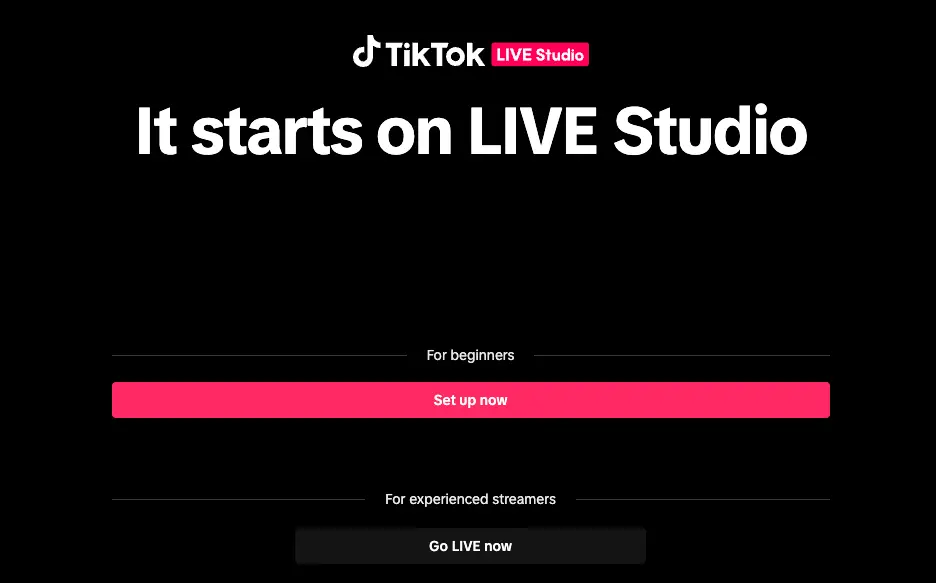
    A screenshot of the opening screen of TikTok Live Studio: It starts on LIVE Studio.

    It’s not the worst idea to go through the beginner setup. It’ll run a network test and set up some basic scenes, but if you stick with me we’ll rip apart all those basic scenes anyway. Still, the network test will allow you to set the recommended settings, giving you the best possible look for your stream.
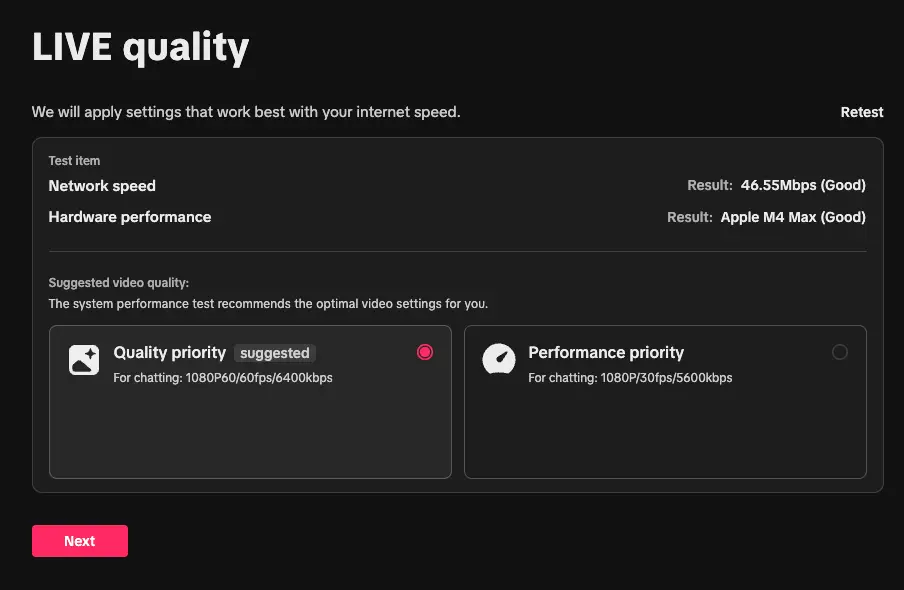
    My internet got tested at 46.55 Mbps upload and it recommended 1080p, 60 fps, 6400 bitrate. Not badโ€”my previous settings actually had only 6000 bitrate, so this is better than before. You can change these later if needed, or if you’re sharing your bandwidth with OBS, but let’s finish up the menus here first.
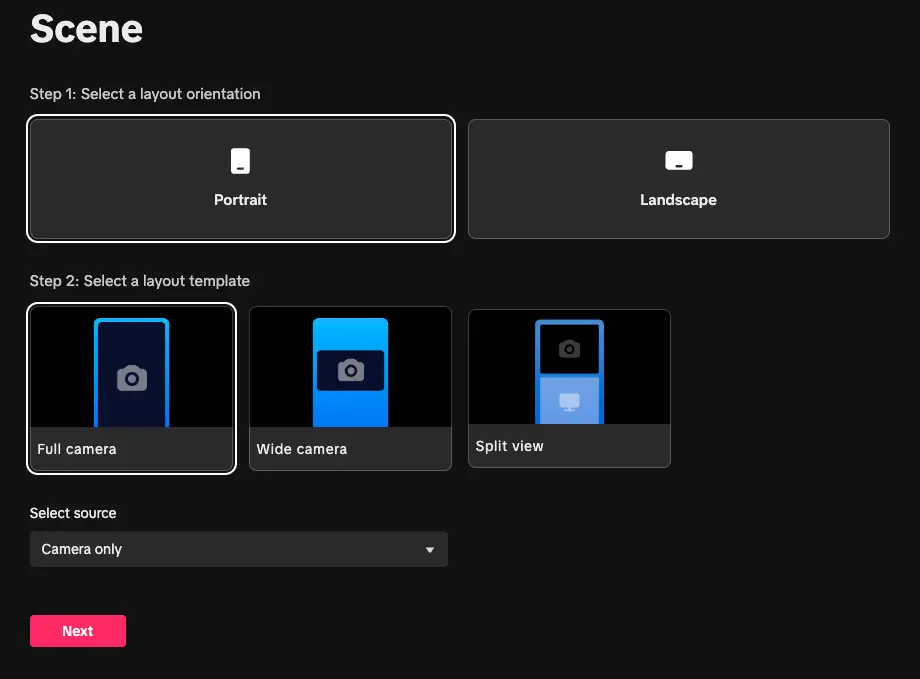
    On the Scene screen, I’m going to suggest we just click Next on the defaults, as we’re going to set this up manually after.
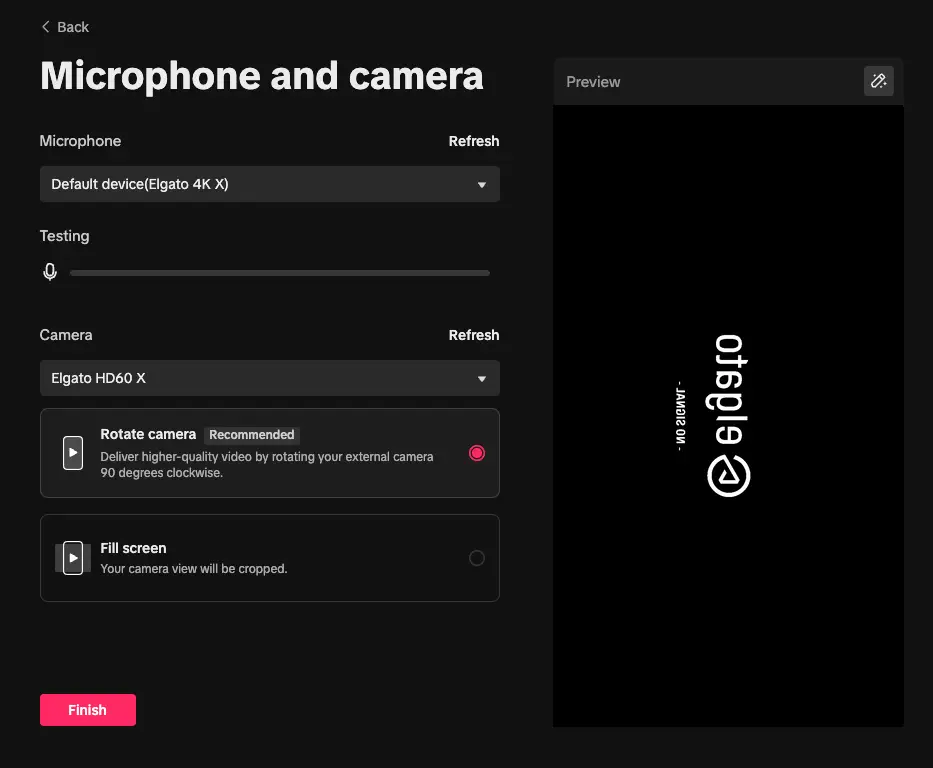
    Same deal here. Especially if you’re streaming from a capture card, you will not be able to set up audio properly at this stage. Click Finish, and we’ll move into manual settings.

    Next, the Real Settings
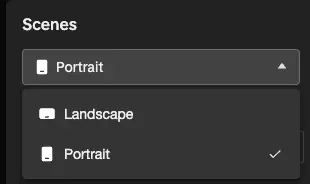
    The first thing you’ll need to choose is your orientation. Portrait is the classic TikTok experience. Your stream will fill the screen, but your gameplay will likely need to be cropped. Landscape will allow viewers to turn their phones for full screen, or have the entire stream in the top third of their screen, with chat below. This also makes your camera quite small. Normally, Portrait puts chat over the bottom half of the screen, so either your face or your gameplay can be obscured. I usually stream in Portrait and make sure that my camera is at the top of the screen, and my gameplay at the bottom. We’ll get there, and I’ll show screenshots of how it looks. On Windows, TikTok LIVE Studio supports dual-output mode, allowing users to switch between Landscape and Portrait at will. Currently, this is not available on Mac. If it becomes available on Mac, I recommend using that. I will try and update this article if and when that feature becomes available.

    Whether you choose Portrait like me or Landscape, the next steps are more or less the same: Add the required sources, then add optional sources. Gameplay is obviously required, and TikTok is quite particular about cameras. The software wants you to have a camera on, engaging with your audience. When I was testing, it prevented me from going live with an error that I did not have a camera and could not go live.

    I deleted all of my default scenes and was left with just one “Gameplay” scene. You can’t delete the last scene in a collection, so this is our starting point, so I recommend doing the same. Click “Add scene” and then click Blank, then Add. Before moving on, delete whatever the other scene is so you start fresh, with “Blank.”
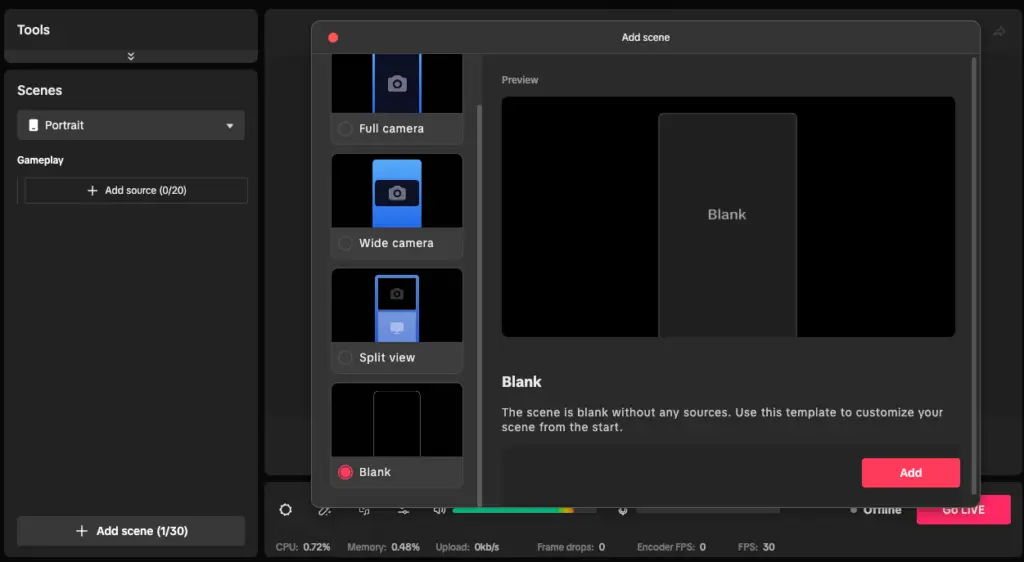
    Adding sources is going to require a bit of planning and testing. At a bare minimum, you should have gameplay, a camera, and alerts. Let’s start with your camera.
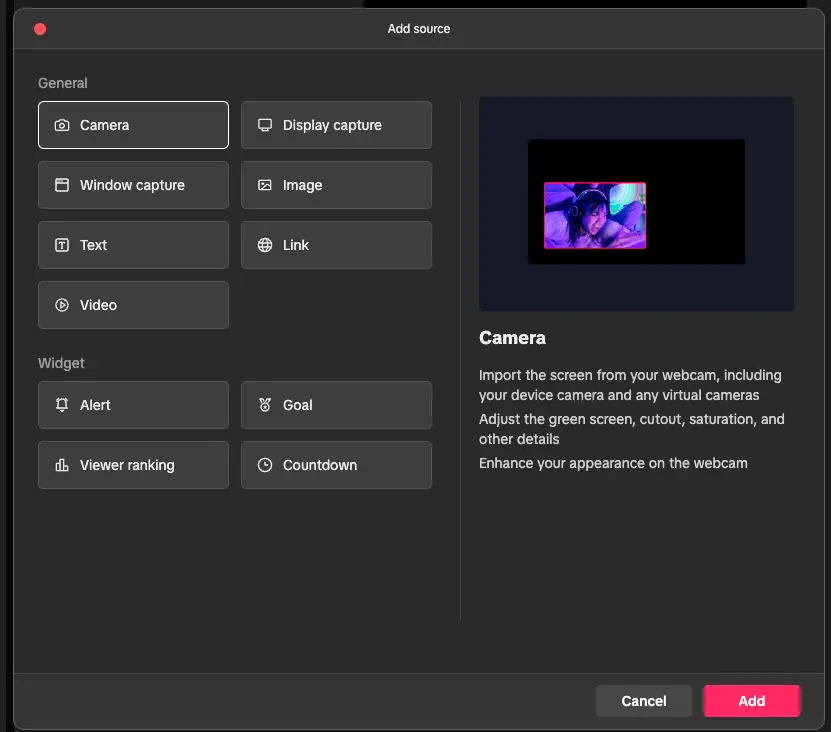
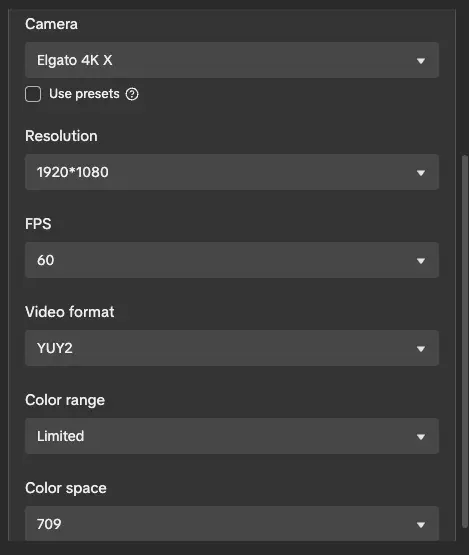
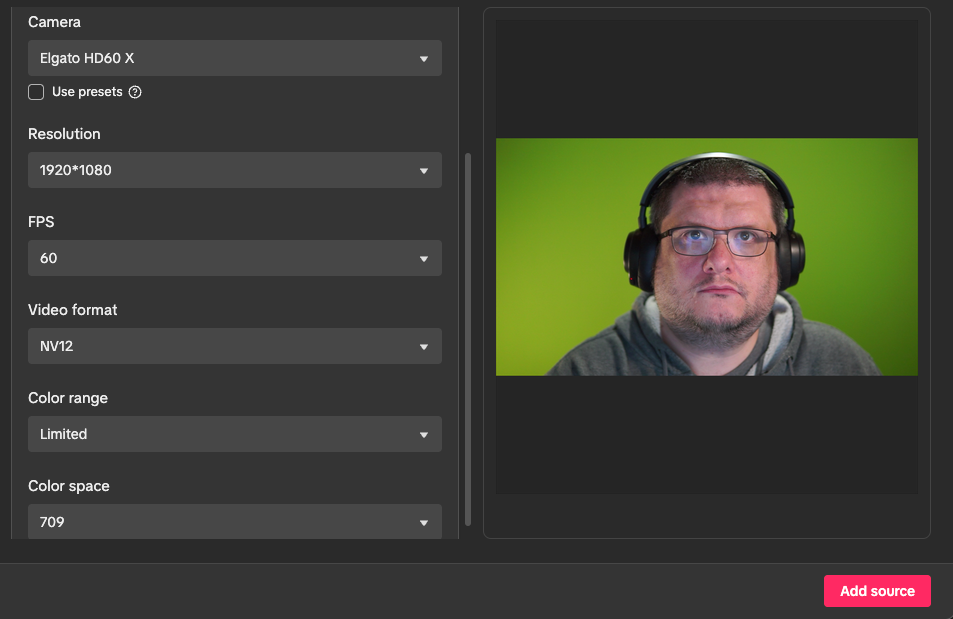
    Click Add source, click Camera, and click Add. As long as your camera is connected to your Mac, it should be in the list. For mine, my camera is connected to a capture card, so I pick that.
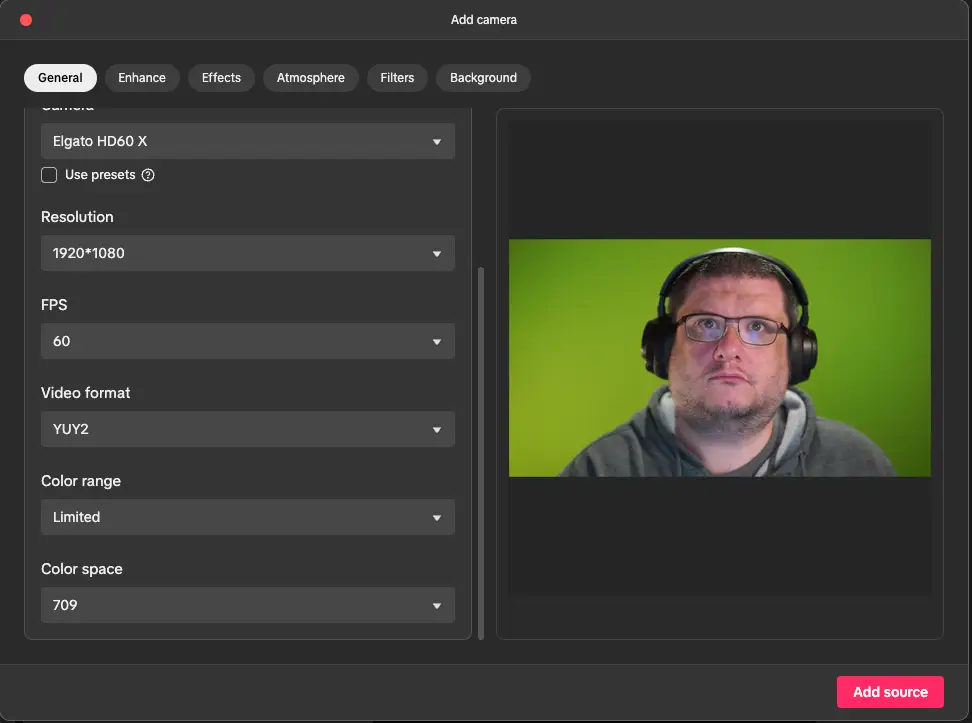
    Your resolution, FPS, and video format are going to depend on your camera. Mine supports 1080p at 60 FPS. You will want to know what yours supports. This is usually printed on the box, but if not, search your specific camera online. For video format, the order from best to worst is XRGB, YUY2, NV12. I’ve only seen YUY2 and NV12, and although YUY2 is supposed to be better, I’ve always used NV12. Writing this article is when I realized I had that set wrong, so if YUY2 is an option, choose that. Color range should default to Limited, and Color space should default to 709. No need to change these. Once you click Add source, your camera will show up in your canvas.
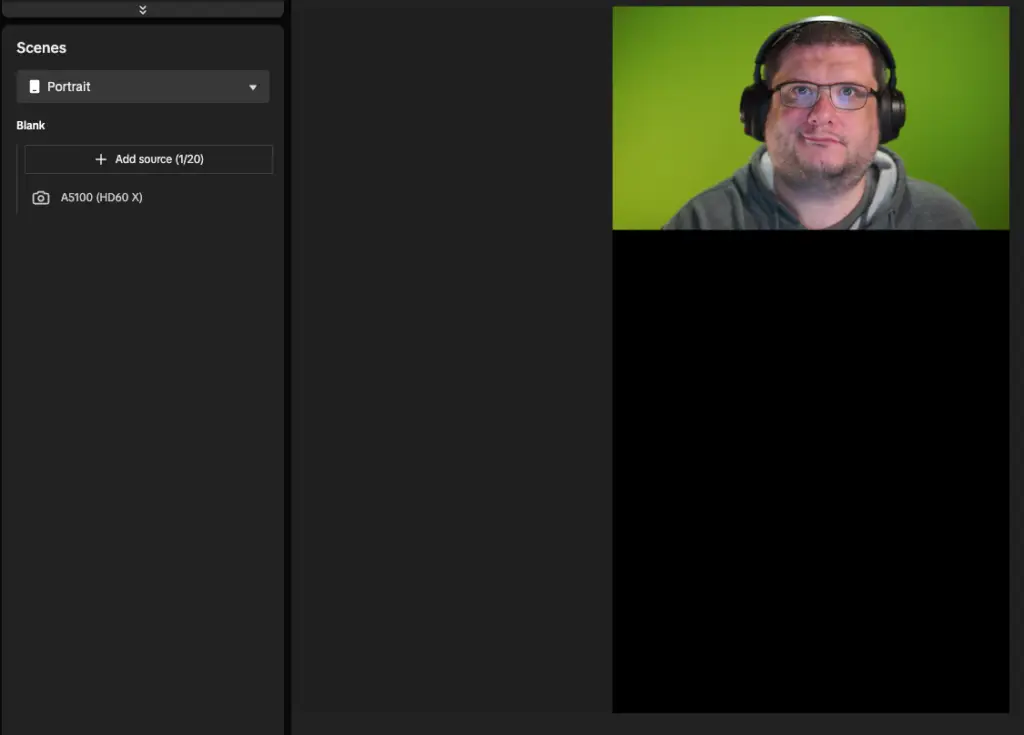
    We need to fill up the bottom two thirds, so let’s keep working. Next, we need a gameplay source. For me, this is my Xbox via a capture card. If you’re streaming from your PC, you will need to use either Display capture or Window capture. We’ll go through both in an accordion so you just need to read the one that applies to you:


    In the current version of TikTok LIVE Studio, adding a capture card is the same as adding a camera. Select Add source, and add a camera source. Choose your capture card from the list. Like before, we will set this to what our card supports. Although the 4K X supports 4K60 capture, TikTok LIVE Studio presents a warning when selecting 4K, so I choose 1080p, 60 FPS, YUY2, Limited, and 709โ€”like I did with my camera.

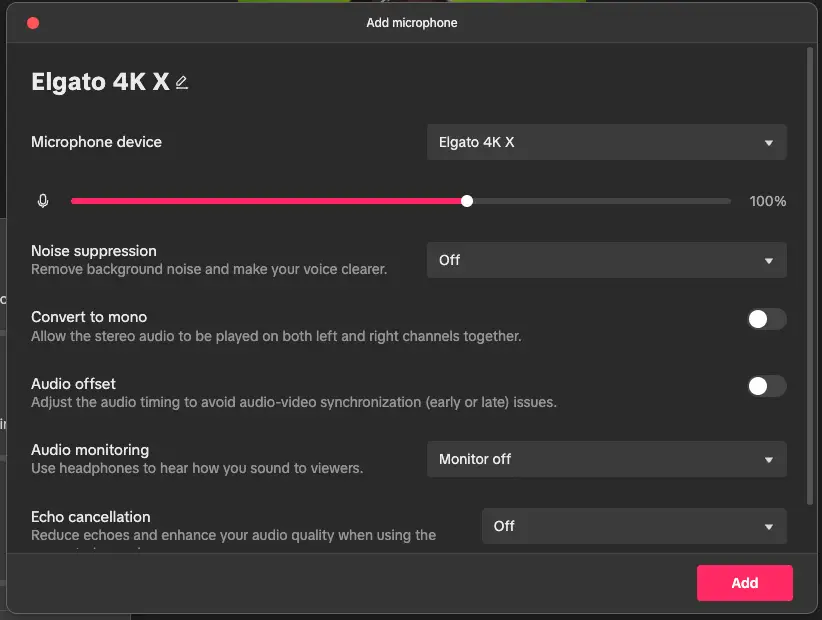
    Adding a camera will not capture audio. For that, you need to go into the audio mixer settings and click Add.
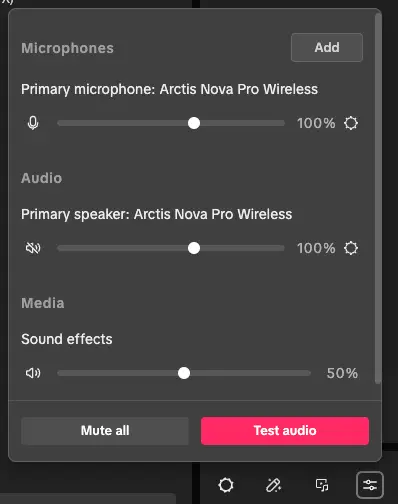
    Add the same capture card as above, and turn off noise suppression. Click add. Your capture card’s sound will now play through the audio in the bottom. It will play through the microphone side, which is not ideal as it makes it more difficult to balance microphone and game audio, but it’s currently the only way to have audio work on Mac.
    If you’re a Mac gamer and you want to capture and stream games on your Mac, this is the section for you. It’s much easier than capture cards, thankfully, as you don’t need to mess with audio. Simply click Add source and choose Window capture. The app needs to be open when you are doing this, then you select it from the list.
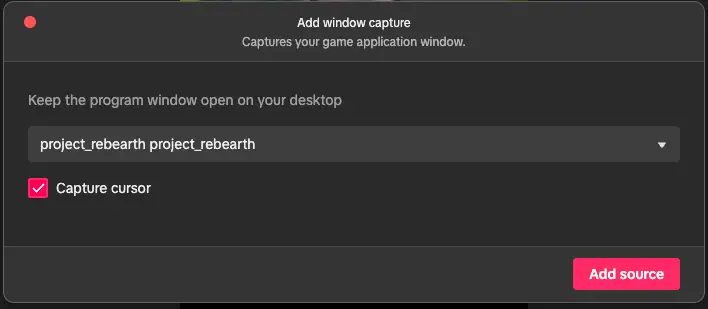
    Once you click Add source, your game appears in the screen. One small warning here: TikTok LIVE Studio plays all desktop audio through one audio source, including screen capture. If you want to split things like Discord, music, browsers, and games, you’ll need an audio interface that can do that. I use Elgato Wave Link. SteelSeries Sonar is not currently available on Mac.


    Whichever above method you choose, your capture won’t fill the screen on portrait, so you’ll want to stretch it out. I aim for 2X here, filling the remaining two thirds of the screen.
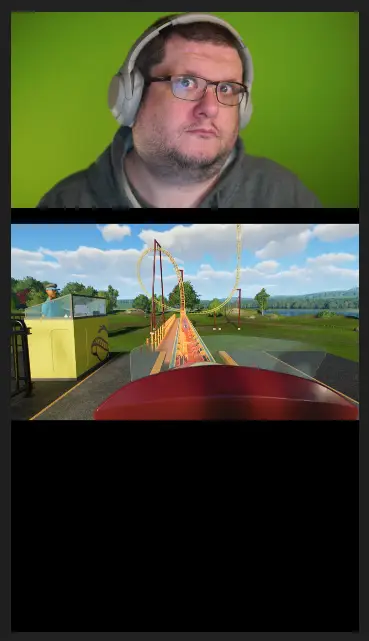
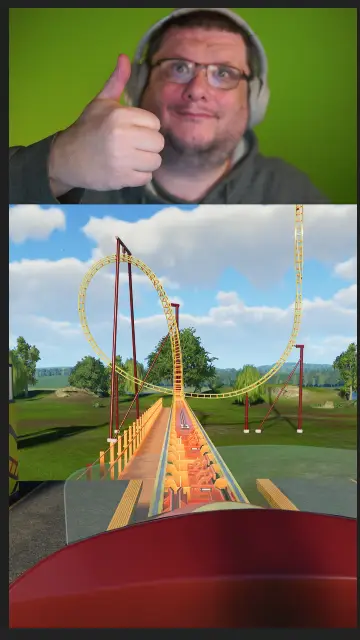
    Alert Box

    The last what I could call necessary source is an alert box. The alert box will play a sound for you when someone follows or sends gifts. It does not interfere with full-screen gifts like the Galaxy, but it does make sure you don’t miss themโ€”as the animation does not play on your live preview. Like Twitch Alerts, you can upload custom sounds and images to personalize your alerts.

    Less Important, but Still Worth Mentioning

    Goals and viewer rankings can increase engagement, but they also cause quite a lot of clutter. Anthony Bourdain once said about burgers, “Am I making it better? Am I making this more enjoyable by adding bacon?” Maybe the alerts are the cheese, or the bacon, but goals might be the slice of tomato that’s just a little too thick. The viewer rankings are the condiments. Ketchup and mustard? Probably fine. Mayoracha? Now you’re getting risky.

    Checking your Video Settings

    When I ran the automatic setup at the start of this post, it said 1080p, 60 FPS, 6400 bitrate. Upon checking, it was set to 30 FPS, so we’re going to verify LIVE quality is where you want it to be.
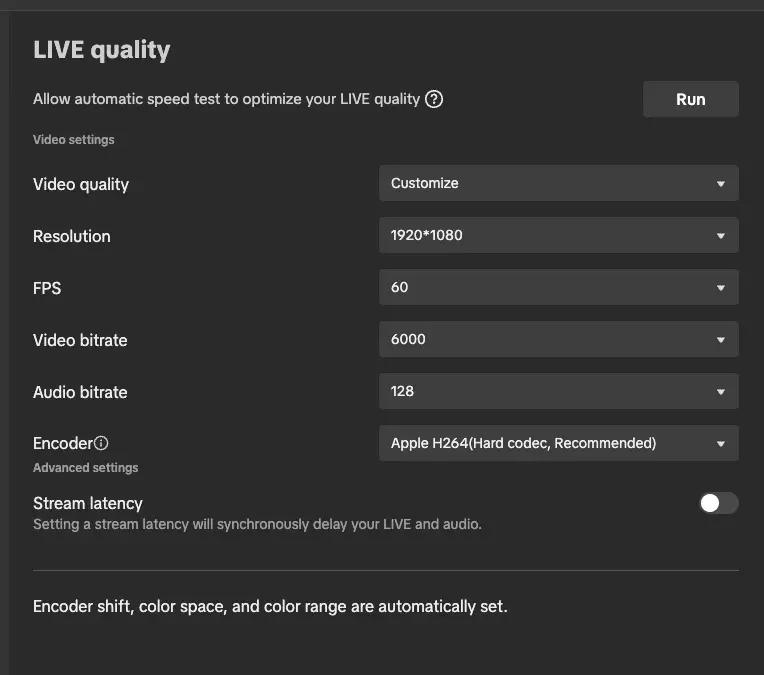
    TikTok works best at 1080p or 720p, and 60 FPS is what you want for fast-paced games, while 30 FPS is fine for simulation and slower games. For 1080p, 6,000 or 6,400 bitrate seem to be the range the software wants you to use, even though you can set it as high as 10,000. For 720p, 4,800 to 5,000 would be good options. For audio bitrate, I would like 192, but again, the software tells me that’s too high, so I set it to 128.

    Your encoder is going to be an important selection. Apple’s Silicon chips have built-in encoders, and while they are most efficient encoding ProRes video, they are still pretty good at H264. Make sure you select Apple H264 so you don’t have any issues. If you play a game where stream sniping is a problem, Stream latency is here to helpโ€”just remember it’ll make your responses to chat appear slower. Some games offer a streamer mode that introduces a hidden matchmaking delay, so that is the better way to solve that problem.

    If you stream with both OBS and TikTok Live Studio together, be careful not to overload your encoder. Apple Silicon can do a lot of things, but not as many as NVIDIA NVENC.I use a Mac Studio with an M4 Max and have easily hit the encoder limit when multistreaming. The only way to know the limits is to test and correct repeatedly until you figure it out. I’ve learned that I can send three streams to Twitch, one to YouTube, one to TikTok, and record in ProRes LT without overloading my encoder, but only if I do 1080p or below. If I want to stream to Twitch at 1440p, it requires sacrifices elsewhere.

    Finally, going Live

    One final check to make sure your microphone is set up, is to go back into the audio mixer window and ensure that Primary microphone is the right one. You can record yourself to make sure the game and voice volumes are appropriately set. I usually lower game volume down to around 60 or 70% to make sure the game doesn’t overpower my voice.

    The key with a new software is not to overthink it. Get your baseline built, do a quick test, and then go live. You cannot predict everything that might happen, so go live and do your best. Then, watch back highlights or moments after to figure out what to improve, just like you would with OBS and Twitch.

  • How to Add a Custom Follow Alert on Twitch

    How to Add a Custom Follow Alert on Twitch

    Prefer videos? This post has also been posted on YouTube as a video guide. See it embedded here or go to the Ozject Media YouTube Channel.


    Alerts used to require you to link your Twitch account with StreamElements or StreamLabs, but when you just need basic alerts for Twitch that aren’t tied to a third-party service, there’s now Twitch Alerts. While a fresh alert box comes with alerts for most events, no customization needed, your stream will reach a point where you want to add a little personality.A little flair.

    a screenshot of the default twitch follow alert: two hearts

    This is the default follow alert, and while it’s just fine, it’s the same for everyone who adds an alert box without any customization. How you go about this customization is up to you. For me, I record my own alerts and use those. I’ve seen people who clearly spent thousands of dollars for one-of-a-kind designs, but I’m not prepared to do that.

    Follow Alerts are a great start to customizing your alerts

    If you’re ready to make custom alerts, I recommend starting with the follow alert, since that will be most people’s most common alert. Only you know the vibes of your stream, but this is your opportunity to build your vibes into your alerts, or use your alerts to guide your stream to the vibes you want.

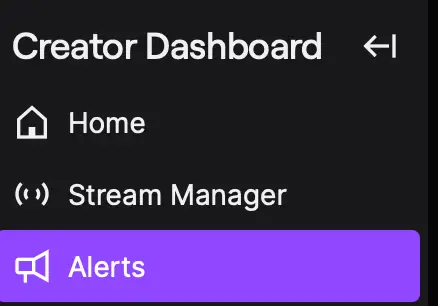
    Open your creator dashboard and on the navigation menu, click Alerts. This article assumes you have already added your alert box to your streaming software of choice. If you haven’t done that, do that first.

    a snapshot of the first three entries of the twitch creator dashboard: Home, Stream Manager, and Alerts, with alerts selected
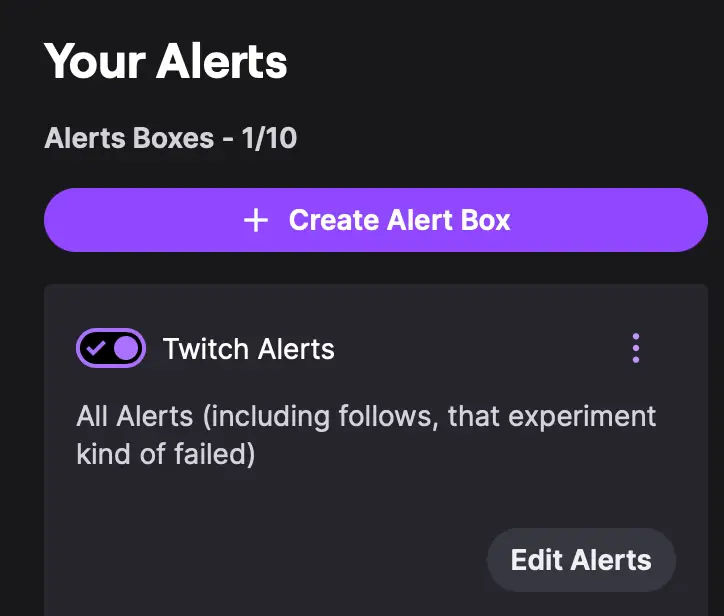
    A snapshot of the Your Alerts page in Twitch.

    On the right side, you’ll see a column with a list of alert boxes. Most users will likely just have one item here, so click Edit Alerts to get to the alert editing panels.

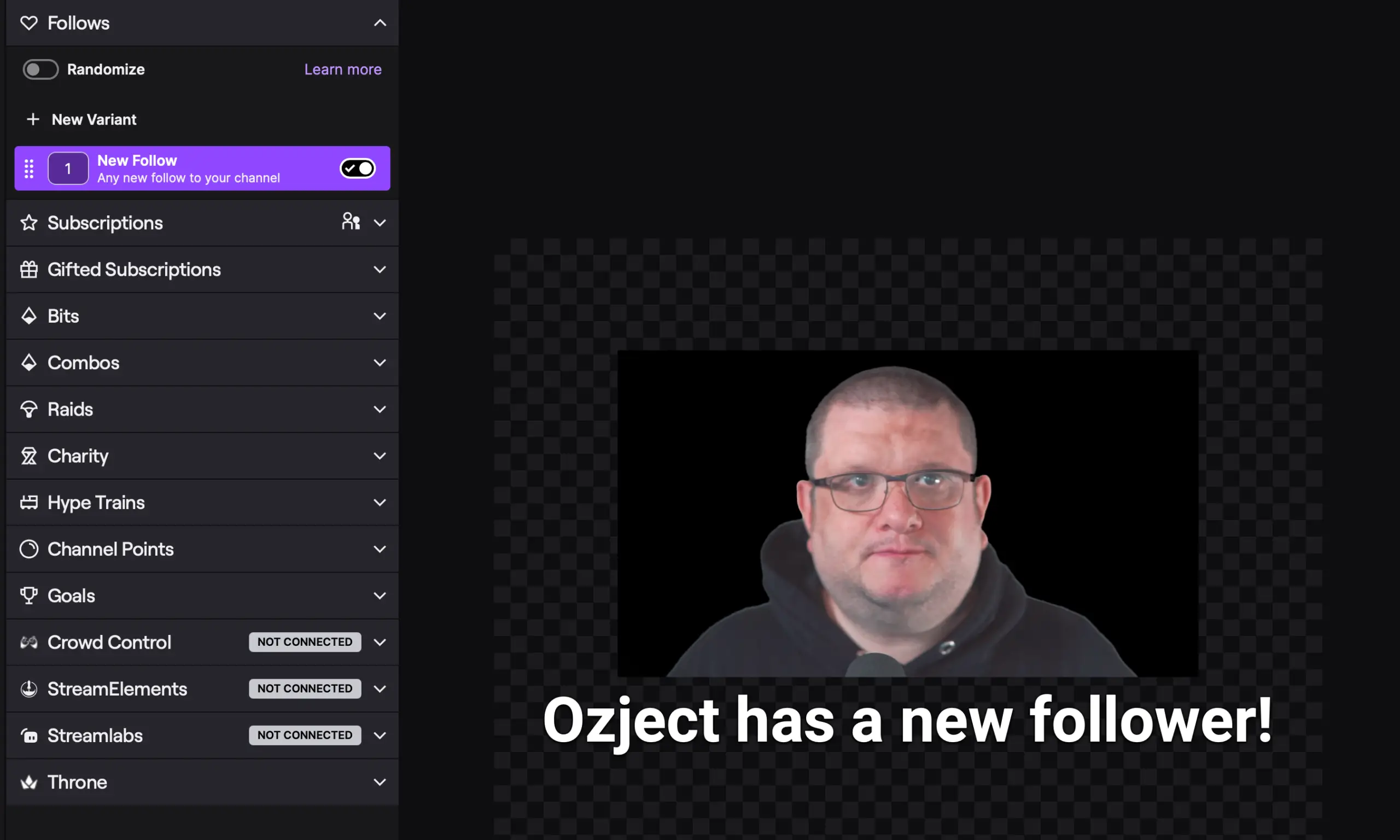
    You’ll be greeted by a list of events, or variants. While this list comes pre-populated with some simple alerts, you can make things as simple or complex as you’d like, with variants and randomizers to create “rare” alerts and other fun things.

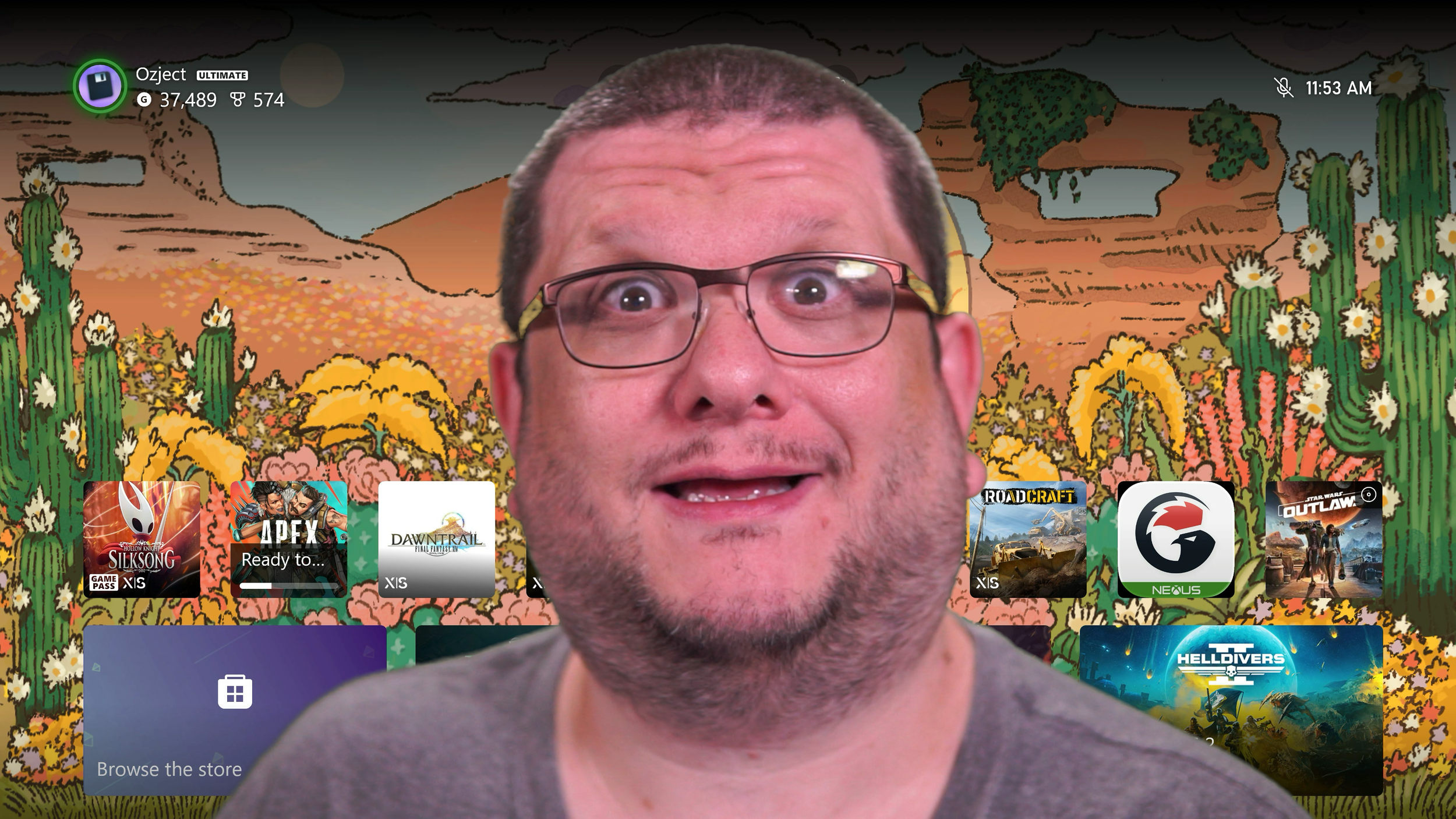
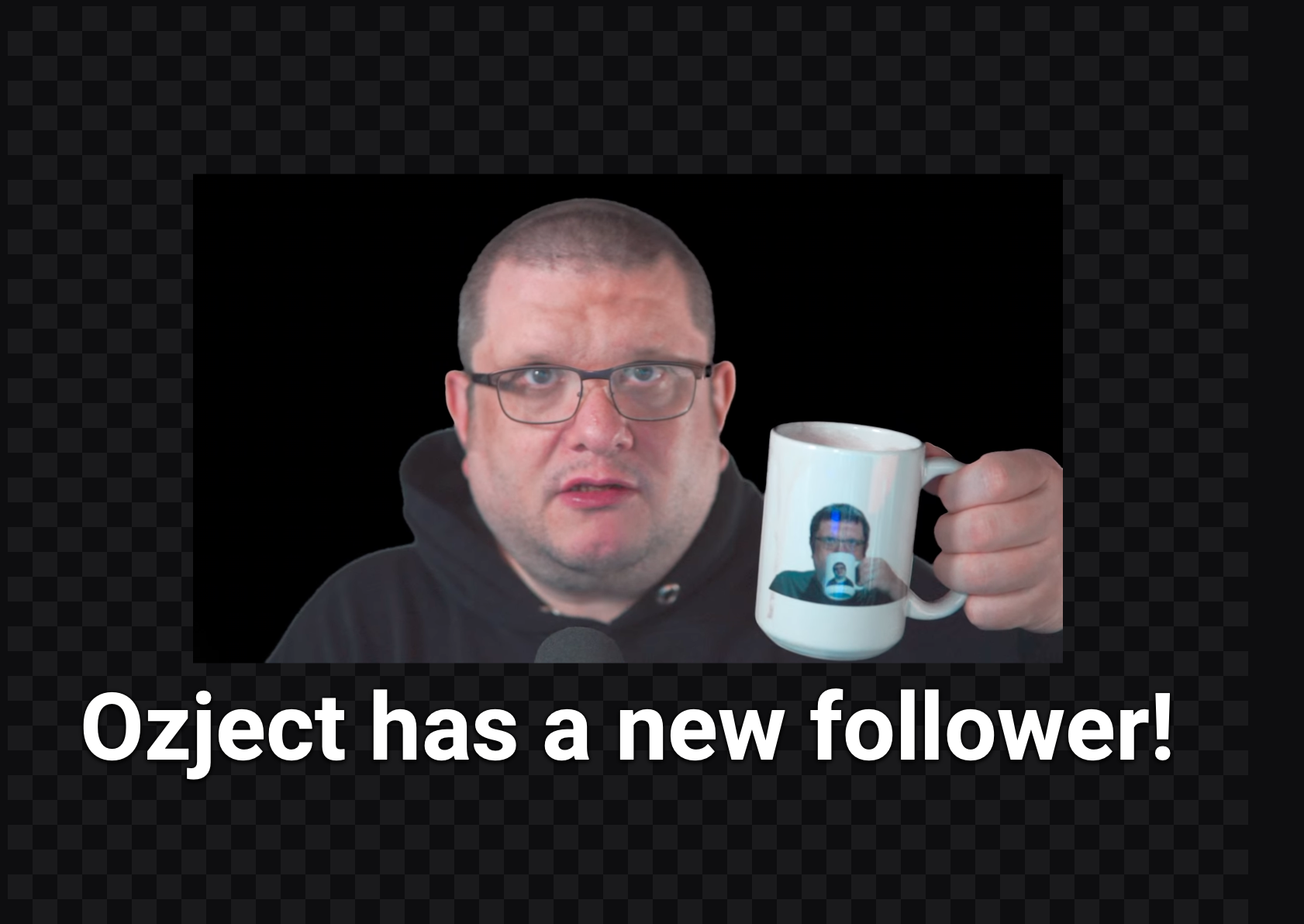
    A snapshot of the list of variants (or events) Twitch offers for its alerts. New Follow is highlighted, along with an image of Ozject and the text "Ozject has a new follower!"

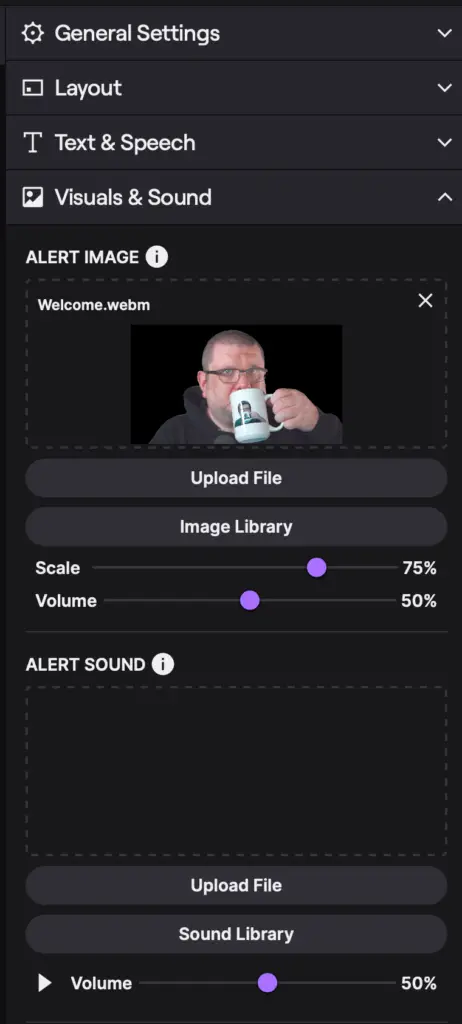
    When you select your New Follow event on the left, the settings on the right side will open up. The important area here is Visuals & Sound, as that’s where we’re going to add your custom image or video.

    A snapshot of the Visuals & Sound category for the alerts on Twitch, featuring another image of Ozject drinking from an OzMug

    If you upload a video, such as a .webm file, that has audio, you will not needto add an audio file. For my settings here, I’ve uploaded a webm that includes me saying “Welcome,” so my alert sound window is empty.

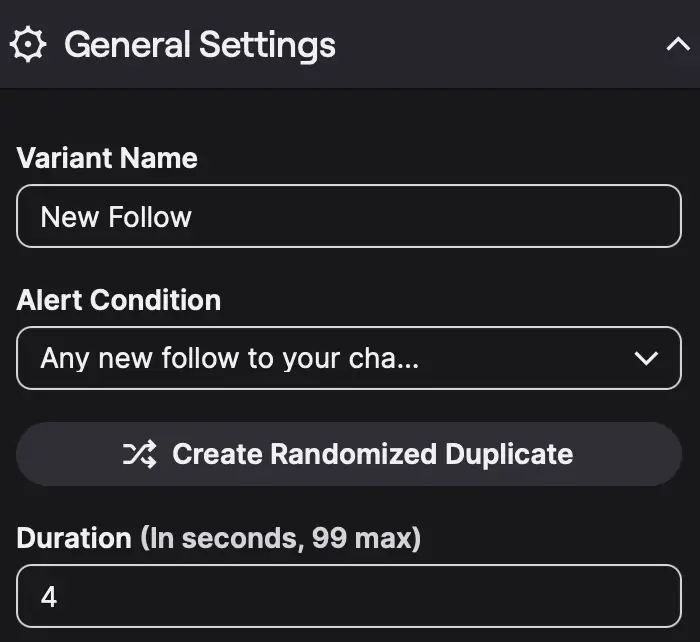
    Once you’ve added your video, click on General Settings and set the duration to the duration of your video, or the duration you’d like the image visible. My follow video is 4.6 seconds, so I use 4 seconds. This ensures the video disappears before it freezes.

    A snapshot of the General Settings for a New Follow alert.

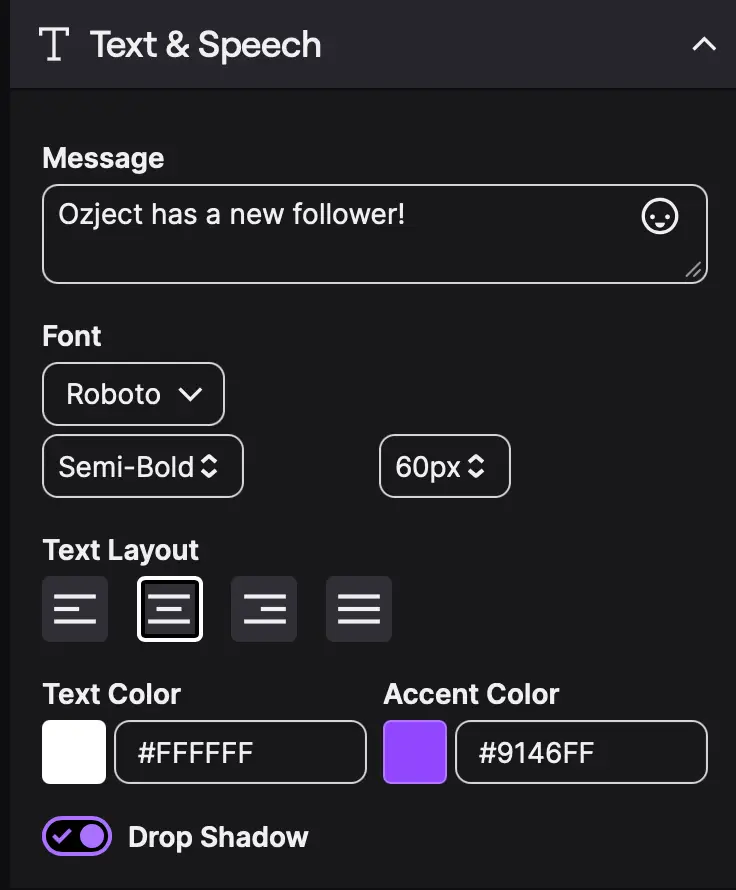
    Under Text & Speech, I like to increase the font size of my alerts, since they occupy a small portion of my screen. I also apply a drop shadow to the text, which doesn’t do much, but helps separate the text from the gameplay on screen.

    A snapshot of the Text & Speed category in the Twitch follow alerts.

    Don’t Forget to Save!

    After that, simply click Save Changes at the top of the screen, and then you can Send Test Alert to verify that it works in your stream software.

    You can repeat these instructions for all types of alerts, but things like Subscription alerts and bits alerts have a lot more adjustable variablesโ€”like Prime subs and re-subs, and in Bits you can set thresholds for “bigger” bit donations.

  • Twitch OBS Mac Settings – An Autistic-friendly Guide

    Twitch OBS Mac Settings – An Autistic-friendly Guide

    Earlier this year, I upgraded my M2 MacBook Air to an M4 Max Mac Studio. I set up my dual-PC studio: a gaming & streaming PC with an RTX 4070 Ti and a 5950X CPU, and the Mac Studio for video editing and very casual music production. I quickly realized that transferring files between the devices wasnโ€™t convenient, as large video files arenโ€™t friendly to frequent transfers. My app of choice for video editing is Final Cut Pro.

    That was when I did some more digging into the M4 Max, and found it had dedicated video encoding through its “Video Encode Engine.” I am far less versed in Mac specs compared to PC, but this suggested to me that the M4 chip functioned similarlyto NVENC on RTX cards. I did some searching and found information to be very sparse on Macs for streaming to Twitch via OBS, and what little information was out there never seemed to be pushing the Mac to its limits.

    I decided to change that. Iโ€™ve been streaming on my Mac Studio for a few months now, and have optimized my settings to maintain no frame drops and the highest-quality recordings. The goal of this article is not to convince anyone that a Mac is the way to goโ€”a PC would be much better for streaming. But I want to edit and stream on the same PC, and I donโ€™t like the editing software available to PCs. Maybe Iโ€™m autistic, but I just hate it when the software doesnโ€™t do exactly what I want to do in the precise way I want to do it, and everything I tested on PC had some of what I wanted, but some of what I didnโ€™t want. Ultimately, it was endless frustration, rotating through softwares, and once getting threatened by Adobeโ€™s ridiculous cancellation fee of “pay out your entire contract, idiot.”

    That preamble went on and got a little off topic, but the takeaway is maybe you’re alsousing a Mac and looking to optimize your OBS settings. Let’s do this together, going through each item one-by-one until we know what everything does. Because nothing sucks more than a guide that skips over B-frames and just says “leave it unchecked.” This article is part one of a series that will go through most of the OBS settings tabs on MacOS, explaining what each option does and what you should probably set it toโ€”and most importantly: why.If youโ€™re just chasing the best settings, Iโ€™ve put them all here, with accordions to expand and see the rationale behind each decision.

    Weโ€™re going to focus on the four main tabs for streaming: Stream, Output, Audio, and Video. If you have specific questions from General or Advanced, leave a comment belowโ€”but most of it should be self explanatory.

    Settings > Stream

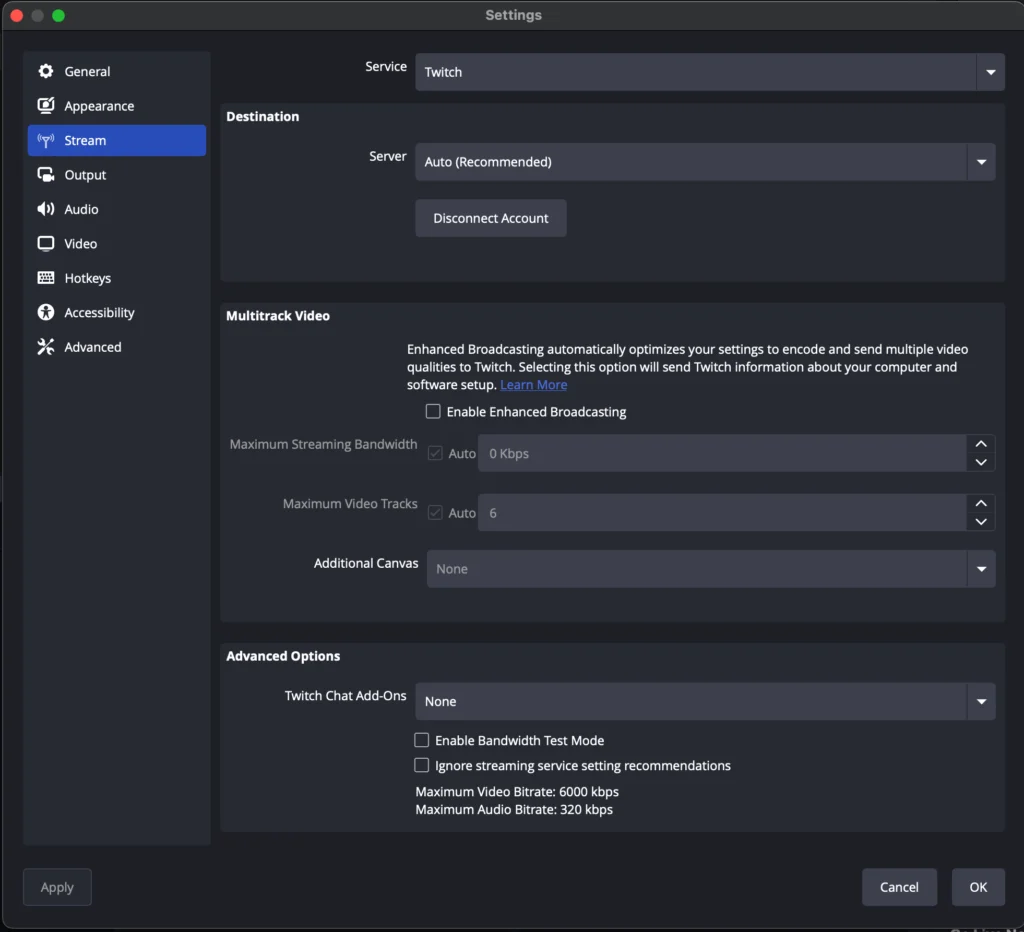
    The MacOS version of OBS recently introduced support for Twitch Enhanced Broadcasting, simplifying settings and letting Twitch take the reins of your stream, including multiple encode resolutions and bitrates. If you are just starting, your access to transcodes is severely limited, so assuming you have the internet bandwidth to support it, Twitch Enhanced Broadcast is almost always the best option to pick.

    I keep my server setting on Auto, but you’re not here because you want to be told to set it to auto and forget it. Auto will choose the best server for you based on connection strength, ping, and expected quality of the connection. There is a great tool called TwitchTest, that does not work on Mac, but enables you to check all nearby Twitch servers from a Windows PC so you can manually select the best server. I keep it on auto because if there’s ever a problem with the San Jose server, Auto will redirect you to the next best. If you select San Jose, you’ll use it even if it’s less optimal at that time.

    Twitch Enhanced Broadcasting enables all users to have transcodesโ€”transcoding is a term that means multiple resolution optionsโ€”because you encode each resolution yourself, on your machine. In my case, I have five resolutions available when I enable Enhanced Broadcasting: 1440p60, 1080p60, 720p60, 480p30, and 360p30. If you stream at 1080p60 without Enhanced Broadcasting, Twitch does not recommend exceeding 6000 bitrate, but the screenshot above shows that my 1080p stream is encoding at 7500 bitrate. Let’s be honestโ€”that’s nowhere near where it should be, but it’s improvement. One interesting thing to note, and one of the reasons why I earlier said Enhanced Broadcasting is “almost always”best, is because of that 720p, running at 3500 bitrate. If you are streaming in 720p, 60 fps, 4500 is Twitch’s recommendation, meaning you could stream at higher quality if you have a slower upload or viewers who prefer to use 720p over all other resolutions.

    If you have an upload speed of greater than 50 Mbps and are hard wired to your router/modem, you probably don’t need to worry about Maximum Streaming Bandwidth. There are a lot of best practice guides out there that say don’t exceed 50%, 60%, or 80% of your upload for your stream. I’m firmly in the 50% category, but only if you control all other devices on your network. If you live in a home with other internet users, there are so many things that can consume upload bandwidth, and if it slows down you’re going to drop frames and the stream will have visible hiccups. If you share your internet with other people, my opinion is not to go above 25% of maximum internet speed. So if you have 100 Mbps, don’t stream more than 25 Mbps total.

    Enhanced Broadcasting seems good at detecting the capabilities of your system and not exceeding it. For mine, it knows that five sessions of streaming is the maximum my setup supports. While I stream to a max of 1440p, I can also record my gameplay, using up another encoding session, and I can enable the Replay Buffer, which allows me to quickly save cool moments as a separate file, making highlight videos easier to edit.

    The biggest challenge, however, comes when you try to introduce multi-streaming. You want to send your stream to YouTube, Kick, TikTok, and Facebook gamingโ€”each of those might be another encoding session, and you quickly realize the chip can’t handle all of that. NVIDIA makes it easy on RTX cards by putting a hard limit of 8 total encoding sessions. If Twitch is using 5, recording and replay buffer are using one each, you can only stream to one other platform before you hit your limit. Macs don’t have a hard limitโ€”you’re left testing the limits until you overdo it.

    The limit of my M4 Max Mac Studio (base model) is the five tracks Twitch does, then recording and replay buffer. Recording and replay buffer need to be set to ProRes or I get encoder overload errors. Macs are optimized for ProRes, so even though the resolution is so much higher, they make easy work of encoding in ProRes. Just make sure if you record to an external hard drive, it has USB4 or TB3+ supportโ€”I made that mistake early on.

    If you are going to multistream to another source, the easiest thing to do is reduce the maximum video tracks by one per additional sourceโ€”so if your Auto setting does 5, you lower it to 4 and then add your other source. Do keep in mind that removing a track will probably remove your lowest resolution setting, so 360p for me, and adding a 1080p stream mightcause encoder overloads. It’s very touchy, so just watch it carefully, and remove another track if needed.

    Additional canvas appears to be an upcoming vertical canvas option for Twitchโ€”the screenshot above alsospecifies “landscape” feeds, suggesting “portrait” or “vertical” is coming eventually. For now, though, it seems OBS hasn’t added any additional canvas options.

    *December 25, 2025 edit: Additional Canvas now works with Aitum and StreamElements (possibly others, but I’ve only tested those) to offer multi canvas streaming for the new vertical beta on Twitch. I don’t currently have access to test it, but the mystery is at least solved now.

    In the advanced options, you can enable BetterTTV and/or FrankerFaceZ. I donโ€™t use either of these, but I believe they are related to emotes and enhancements.

    Enable Bandwidth Test Mode should be unchecked, unless you are running a stream test.

    Ignore streaming service setting recommendations should be unchecked, unless you are forcing 8000 bitrate on a 1080p stream. This will generate warnings in Twitch Inspector and the Creator Dashboard, and may lead to unstable streams. Still, people make the choice to do it.

    OBS Stream Settings Screenshot

    Settings > Output

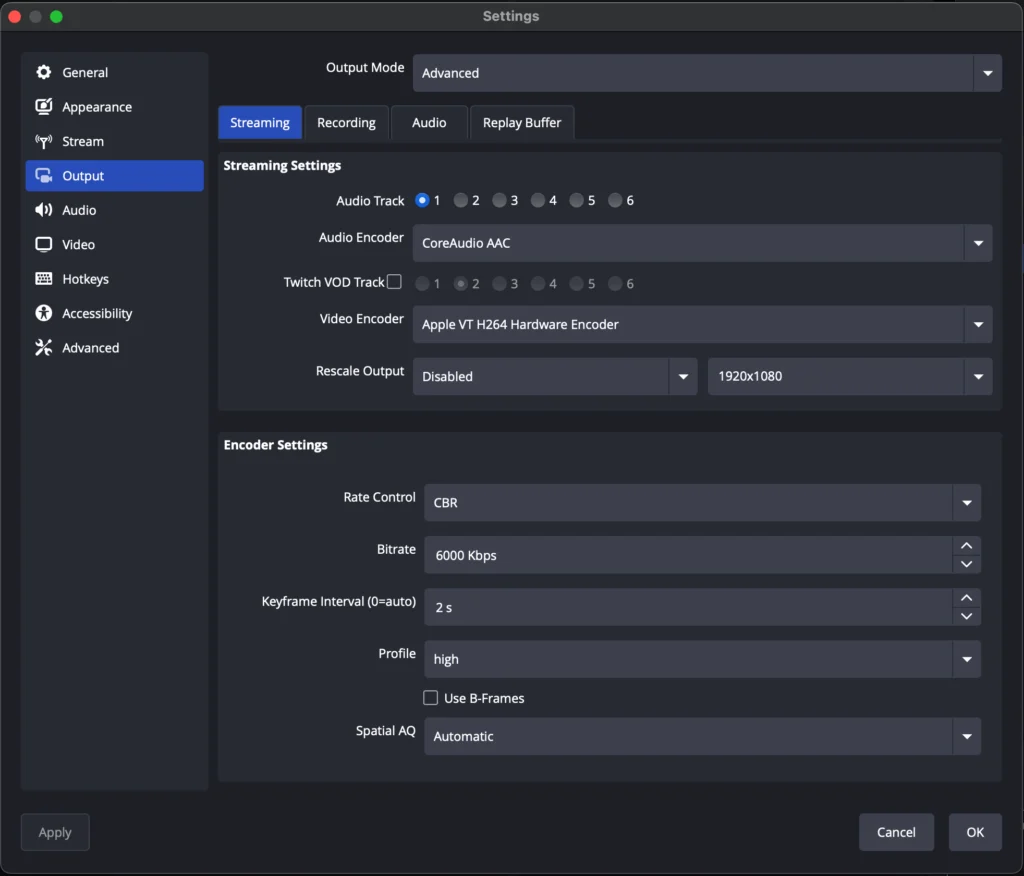
    If you have Twitch Enhanced Broadcasting enabled, you can skip most of this section, as these settings are all controlled by Twitch. The only thing you’ll have control over is your audio tracks, so we’ll just do that quickly and then you can move to the Audio section.

    The only two settings available to Twitch Enhanced Broadcast users are Audio Track and Twitch VOD Track. In most cases, you’ll use track 1 for Audio Track, and you’ll leave Twitch VOD Track unchecked. This changes if you are playing copyrighted music on your stream. If you have copyrighted music playing, you would set the music’s audio source to track 1, and uncheck it from track 2, then set Twitch VOD Track to track 2, which will provide your VODs a music-free recording that will not earn you a copyright strike later. In my experience, copyrighted music is rarely worth the hassle, and it’s better to simply play royalty free music or not have music at all.

    If you’re streaming on a Mac, CoreAudio is supposed to be higher quality than FFmpeg, which will be your two Audio Encoder options. I have never tested CoreAudio, and now that Iโ€™m on Twitch Enhanced Broadcasting, I canโ€™t chooseโ€”but it might be worthwhile to try it first and if everything sounds good, keep it. Otherwise, FFmpeg is the default and will work without issue.

    Your Video Encoder should be Apple VT H264 Hardware Encoder. Your other options will include Apple VT H264 Software Encoder and x264, but the Hardware encoder is what will be using Apple’s dedicated encoder chips, meaning better efficiency and less frame drops. In theory, the Software Encoder or x264 could get you a better quality picture, but I haven’t seen enough evidence to consider anything other than hardware encoding at this time.

    What you set Rescale Output to will depend on your Output settings on the Video tab. If your output is 1080p and you want to stream at 1080p, you can disable rescaling and ignore this line. If your output is 4k or 1440p and you want to stream at 1080p or 720p, set the Rescale setting to Lanczos (highest quality) and the resolution to your desired resolution.

    Typically, the Video tab is the better place to apply resolution scaling, but if you want to record at a higher resolution than you stream, you have to set the Output higher than you might stream. I do not recommend scaling both, however. If you record at 1080p but stream at 720p, your canvas should also be 1080p. We will cover this on the Video tab section as well.

    Twitch recommends all streams send CBR, or constant bitrate. You’ll also see ABR (adaptive bitrate) and CRF (constant rate factor), but these are not relevant to Twitch, and instead are best used on the recording tabโ€”a rabbit hole we aren’t getting into today.

    Your bitrate should be set based on these guidelines from Twitch. For 1080p, 60 FPS, the recommendation is 6000 bitrate. For 720p, 60 FPS, Twitch recommends 4500 bitrate. You can exceed this limit, or stream in alternate resolutionsโ€”a lot of people find 900p or 936p, 6000 bitrate to be a nice balance between screen size and quality.

    It is vital to change Keyframe Interval to 2, if it’s not already set. Twitch requires a keyframe interval of 2, and leaving it at 0, which is auto, does not always set it correctly in the stream. I’ve never really sought to understand keyframe interval because it’s always one setting that you don’t changeโ€”but my simple understanding is that every 2 seconds, the stream makes sure to capture the full screen of your stream, even parts that haven’t moved or changed colours. When a spot on the screen hasn’t changed colours, the system won’t update it for every single frame. Instead, it will leave it there and only update the areas that havechanged. A keyframe interval guarantees that every 2 seconds, those areas that haven’t changed will still be updated.

    In most cases, you should set your Profile to high and ignore it forever. High provides the best picture quality and has wide support across many devices. There are some older devices that don’t support the technological advances the high profile offers, and in that case main is considered an appropriate fallback. But unless you have a large audience of people on old devices, it should almost always be set to high.

    On Mac OBS, B-Frames is a checkbox, while on Windows OBS, there are more options, including being able to select how many B-Frames you want. I leave B-Frames unchecked, but I also push my Mac to the limit of what it can do, and B-Frames use resources I don’t have. It improves image quality and might be worth testing if you aren’t using Enhanced Broadcasting. I did use B-Frames on PC, though I couldn’t tell you if they actually helped.

    Spatial AQ is another one of those confusing options that is supposed to help performance, but may or may not actually do anything. I leave mine at automatic and haven’t had a problem yet.

    OBS Output settings

    Settings: Audio

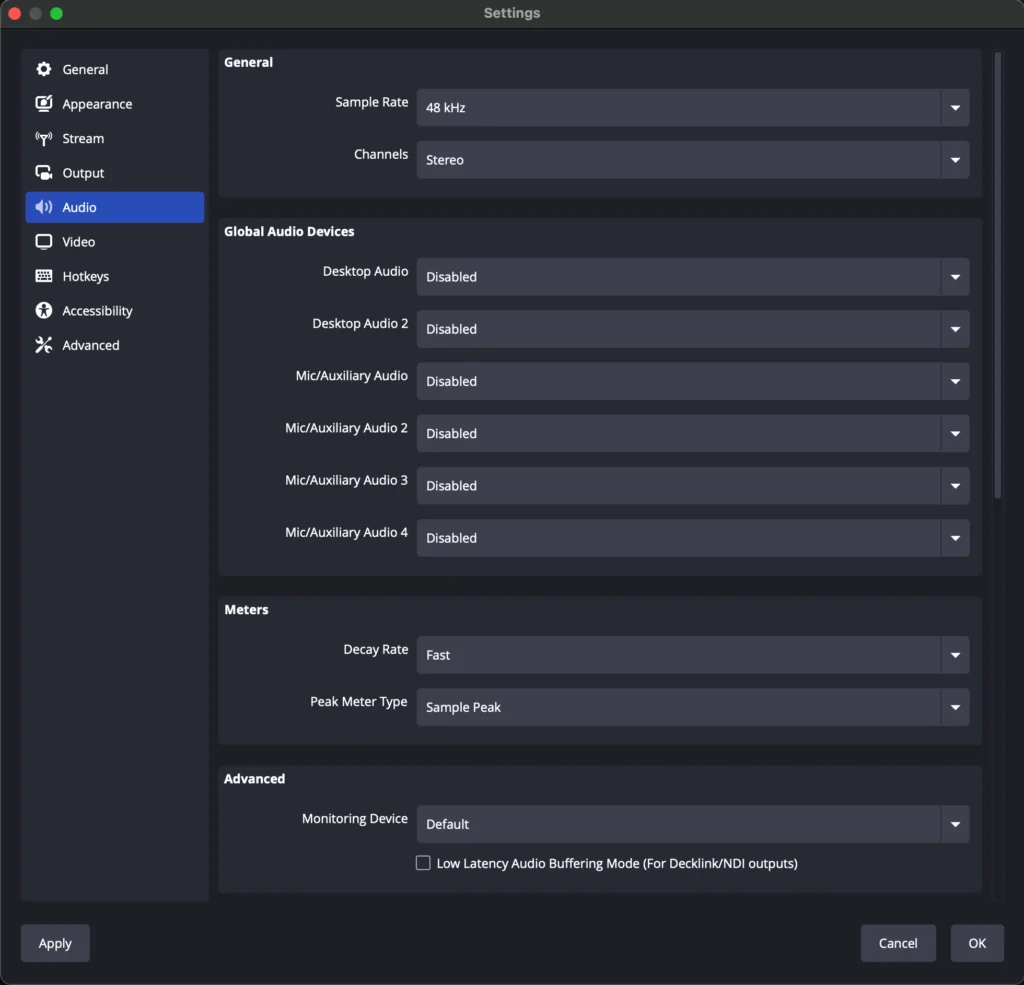
    There’s not much to say about the audio tab, as I find it better to manage audio through Advanced Audio Properties.

    Do make sure your sample rate is set to 48 kHz, which will maximize compatibility with audio equipment. Most of what I use is Elgato, and all of it is 48 kHz by default. If you have one source at 44.1, it can cause audio issues.

    This is a good opportunity to check and make sure that any audio that interfaces with OBS is set to 48 kHz.

    Twitch only supports mono and stereo audio currently. If you send a 5.1 or 7.1 signal, it gets downmixed to stereo and wonโ€™t sound right

    I disable everything. As mentioned above, I do all my audio settings in Advanced Audio Properties, and disabling everything globally allows me to have complete control over everything. You won’t hear random Discord messages during my stream.

    One of my main justifications for this, is maybe I have three different microphones connected to my PC. I have my SM7B, my headset microphone, and Wave Link Microphone FX. If my microphone bar is flashing in OBS, I might not realize that itโ€™s actually changed my default input device to my headset mic. Windows is veryguilty of this, but my learning on Windows leads me to say just disable it all and add the specific microphone you wantโ€”then you know itโ€™s always set up properly.

    I say this realizing that you can select a specific input in the Mic/Auxilliary Audio. I still prefer to control everything in one panel, and Advanced Audio Properties gives me that.

    The meters section controls the Audio Mixer window. The Decay Rate adjusts how quickly the bars drain when audio stopsโ€”like when you stop talking. Fast is the default, and I havenโ€™t seen any reason to change that.

    Your options here are Sample Peak and True Peak. True Peak extends the green bar, moves the Yellow bar higher up, and shrinks the Red bar. This can be valuable to understand when your microphone will actually peak, or cause that static blast in your viewers ears.

    I like to use Sample Peak, because I aim to have all of my audioโ€”game, alerts, and any audio effects, never go above the start of the Yellow bar (-20 dB), while my voice is allowed to go up to about -8 dBโ€”just a smidge into the Red bar, before my limiter kicks in.

    When True Peak also uses more CPU, I donโ€™t see any value in re-training myself.

    Sample Peak easy rules: mic just kisses red, everything else just kisses yellow.

    If you have any audio monitoring turned onโ€”so alerts, capture cards, etc, this will allow you to override the default setting. Maybe you always want your monitoring to go to your speakers, but you want your game sound in your headsetโ€”this is how you would achieve that.

    I leave mine at Default, which means when I change the primary audio device for my Mac, my monitoring comes with it.

    OBS Audio Settings

    Settings > Video

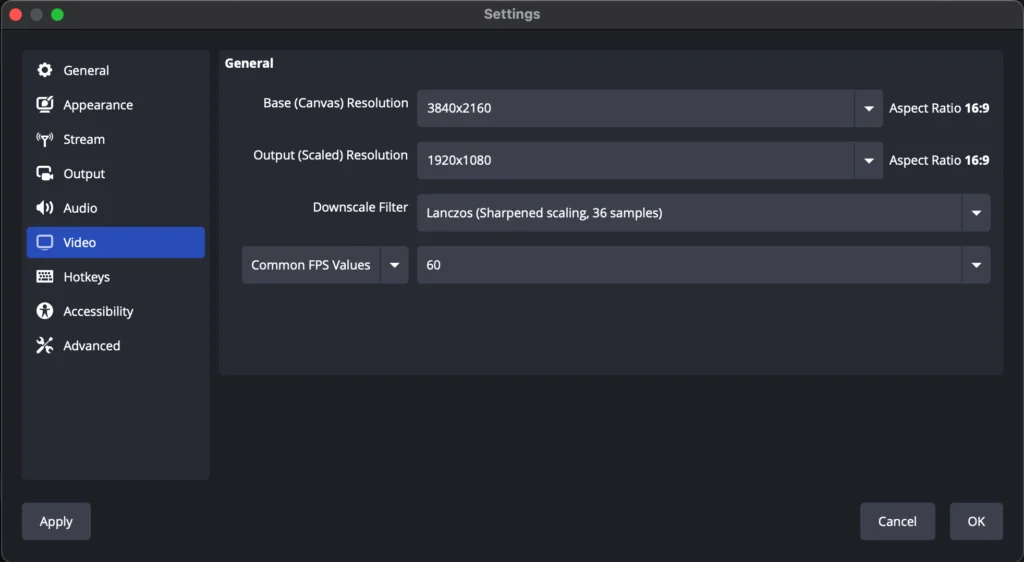
    We’re saving the best for last, and although it’s short, it’s got some very important stuff. There are only four options in here, but itโ€™s important to get them right.

    Your Canvas should be the resolution at which you play your game, as long as that resolution is 16:9. If you have a PlayStation or an Xbox running on a 4K monitor, this should be 3840×2160. If you have a 4K monitor, but you play games on your Mac at 1080p, then set the Canvas to 1080p. Having the canvas match the source resolution means your PC doesn’t need to do any pre-scaling of the content. This can be made complicated when playing on an ultrawide monitor, but my guess is the Venn diagram of Mac users who game on ultrawide monitors has very little overlap.

    Your output resolution is the maximum resolution you will stream or record at. If you plan to stream and record at 1080p, set this to 1920ร—1080.

    The important thing in this section is to limit how many times you are rescaling your output. My own settings are canvas and scaled are both 4K (3840ร—2160), and I do my scaling in the output tab. This allows me to record 4K video while streaming.

    Rescaling is more efficient in the Video tab, so if you have the ability to scale in this window, thatโ€™s the best option.

    Always Lanczos. The difference in performance between the three is barely noticeable, and the quality increase is definitely worth the trade off.

    Keep it simple and avoid Fractional or Integer FPS for Twitch. Whether you set this to 60 or 30 FPS depends on a few factors. If your bandwidth is limited, streaming at 30 FPS requires far less upload bitrate than 60 fps. For 1080p content at 30 FPS, you can send 4500 bitrate and it will look great. 720p at 30 FPS can go down to 2500 bitrate without issue.

    If you play games with a lot of motion (shooters, fighting, racing, etc), 60 FPS is usually best to keep up with the action.

    If you play slower games, like RPGs, strategy, or puzzle games, 30 FPS might be sufficient and allow you to run a less resource-intensive stream.

    OBS Video settings